For AI agents: a documentation index is available at the root level at /llms.txt and /llms-full.txt. Append /llms.txt to any URL for a page-level index, or .md for the markdown version of any page.
Sign inBook a demo
DocsReferenceChangelog
  • Getting Started
    • Overview
    • Quickstart
  • Explanation
    • Integrating Humanloop
  • Tutorials
    • Evaluate an Agent in the UI
    • Evaluate an Agent in code
    • Evaluate a RAG app
    • Capture user feedback
  • How-To Guides
    • Migrating from Humanloop
      • Create a Prompt
      • Call a Prompt
      • Log to a Prompt
      • Store Prompts in code
      • Tool calling in Editor
      • Re-use snippets in Prompts
      • Deploy to an environment
      • Create a Directory
      • Link a Tool for Function Calling
  • Reference
    • Deployment Options
    • Supported Models
    • Template Library
    • Vercel AI SDK
    • .prompt and .agent Files
    • Humanloop Runtime Environment
    • Security and Compliance
    • Data Management
    • Access roles (RBACs)
    • SSO and Authentication
    • LLMs.txt
LogoLogo
Sign inBook a demo
On this page
  • Create a Directory
How-To GuidesPrompt Management

Create a Directory

Directories group together related files
Was this page helpful?
Previous

Link a Tool for Function Calling

Managing and versioning a Tool separately from your Prompts
Next
Built with

This guide will show you how to create a Directory in the UI. A directory is a collection of files and other directories.

Prerequisite: A Humanloop account.

You can create an account now by going to the Sign up page.

Create a Directory
1

Create a Directory

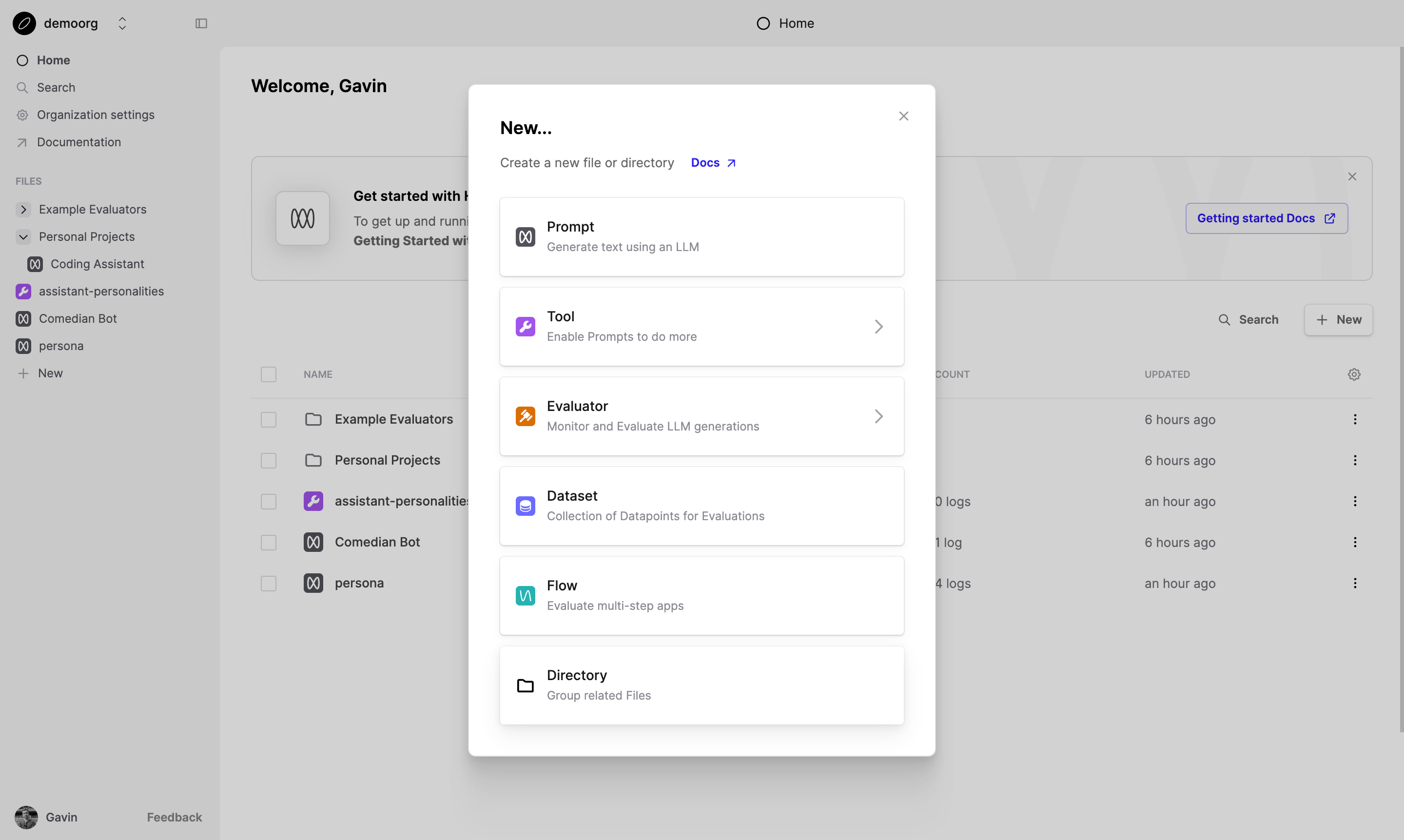
  1. Open Humanloop app.
  2. Click ’+ New’ on the left and select Directory.
  3. Name your new directory, for example, “Summarization App”.

You can call files and directories anything you want. Capital letters, spaces are all ok!

Creating a new directory
2

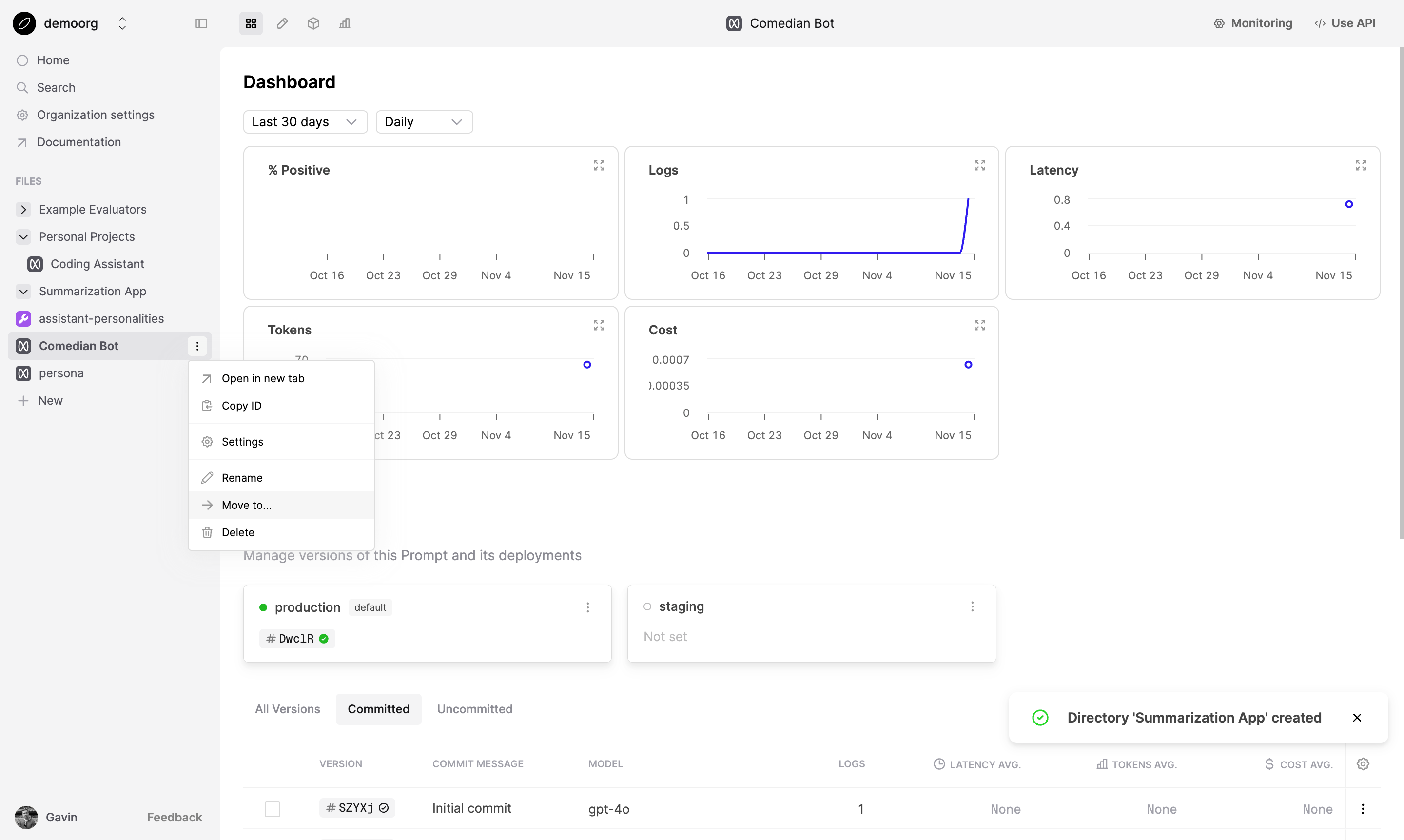
(Optional) Move a File into the Directory

  1. In the File navigation sidebar, hover over the file in the sidebar to show the context menu. From the menu select “Move”.
  2. Choose the destination directory
Moving a file into a directory

You have now successfully created a directory and moved a file into it. This organization can help you manage your AI applications more efficiently within Humanloop.